
HTML in SharePoint means three things now: HTML pages that sit in your site like any other page, HTML views that show a list or library through an interface Copilot builds, and interactive forms that change list items once you approve the update. Copilot in SharePoint can write the HTML for all three from a prompt, so you don’t need to be a developer to use any of it.
For years, HTML in SharePoint meant a file that opened in the previewer, or a workaround with an embed or script editor web part. Since September 2026 an HTML file can be a proper page with the site header and navigation around it, and in November HTML views arrived on lists and libraries, sitting next to All Items. The video above walks through HTML list views, with five scenarios and the prompts I used. The rest of this guide walks through each part in the order I’d learn it, with a full article on each.
Which kind of HTML do you need?
Start with where the information lives and what the reader needs to do with it.
| You want to | Use | Where it lives |
|---|---|---|
| Publish something people read or use, like a homepage, a policy tool or a guide | HTML page | Site Pages library |
| See a list or library a different way, like a dashboard, tabs or a chart | HTML view | On the list or library, next to All Items |
| Change list items through a screen built for the job | Interactive form | Generated by Copilot over the list |
| Run the same build again on another list or site | Skill | Agent Assets library |
In my onboarding list build I used two of these together: a view to find the items and a form to change them.
HTML pages: publish HTML as part of your site
An HTML page is an HTML file published in the Site Pages library. It opens with your site’s header and navigation, you can edit text and styles on the canvas, and one can even be the site homepage. You can describe the page to Copilot in SharePoint, upload a file you’ve built somewhere else, or run a skill that generates it.
A site owner switches them on with Allow HTML files under File types in the Site Pages library settings. Uploaded pages don’t pick up your site theme, so build the branding into the file. The articles below cover creating one, uploading a page designed in Claude Design and setting it as the homepage, and turning a policy into a tool people actually use.
- 1
 SharePoint HTML Pages: What They Are and How to Create ThemSharePoint HTML pages run as real pages in your site, with the header, navigation and edit mode. How to turn them on, create one and what to decide first.
- 2
 Build a SharePoint Homepage in Claude Design and Upload It as an HTML PageSharePoint runs an uploaded HTML file as a real page. How to allow HTML files, upload one, publish it, set it as your homepage, and what needs a licence.
- 3
 Why Your SharePoint Policies Should Be Interactive HTML PagesTurn an expense policy into a SharePoint HTML claim checker: pick the claim, answer a few questions, get the answer and approver, full policy kept on the page.
HTML views: give your list a better interface
An HTML view is an interactive view on a list or library that Copilot in SharePoint builds from a prompt. It sits in the view menu alongside your other views and reads the data live: in my test, changing one item to Blocked moved the view’s blocked count from 4 to 5 without anyone touching the view. You can start from a prompt, or from Add view by choosing Dashboard and giving it a name, which Copilot uses to write the prompt for you.
A view can only show what’s in your columns, so design the columns first. One view can hold several tabs, each showing the list a different way, with summary cards that stay on every tab.
- 4
 SharePoint HTML List Views: Turn a List Into a Live DashboardBuild SharePoint HTML list views with Copilot and give each reader a live dashboard on the list, with five prompts and a way around the editing limit.
- 5
 Your SharePoint List Can Be an App: Build a Multi-Tab HTML ViewBuild a multi-tab HTML view on a SharePoint list with Copilot: the columns to create first, a five-part prompt, and how to fix a change that won't apply.
HTML views on a document library
The same views work on a library, with one extra step. The answers people care about are usually inside the documents, so they have to become metadata before a view can use them. In my build, autofill columns read 126 documents nobody had opened and wrote the answers into columns, and the HTML views went on top. When six late documents arrived, the revenue at risk moved from $37.8m to $44.6m on its own, because the view reads the library live.

Interactive forms: change list items from a screen built for the job
At the time of writing, an HTML view can’t edit or add items. Read-only, for now. Interactive forms fill that gap. Copilot in SharePoint builds a form over a list from a prompt, you make your choices in the form, and nothing in the list changes until you click Update on the card Copilot shows you. A prompt with three parts worked well for me: how to lay out the items, the rules to check as you click, and which columns to write back.
Put a view and a form together and you have a custom interface on your list: the view for finding and checking items, the form for changing them. Say “make this a skill” and Copilot saves the form as a template in Site Assets and a SKILL.md in Agent Assets, so it can run again on another list.
- 7
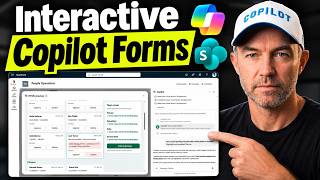 Interactive Forms in SharePoint: Let Copilot Build the Interface for the JobBuild an interactive form over a SharePoint list with Copilot: a three-part prompt, rules it checks as you click, approving the update and saving it as a skill.
- 8
 A Custom Interface for Your SharePoint List: HTML Views Plus Copilot FormsBuild a custom interface on a SharePoint list with Copilot: a two-panel HTML view prompt, a checklist form prompt and a skill that opens the form by name.
Charts and animation with D3.js
Copilot in SharePoint can now use the D3.js library, which Microsoft showed as new at Ignite 2026. That takes a view past bar charts and into animation. My help desk request race started as one prompt that produced a working animated bar chart race in about two minutes, then took four more prompts to add commentary, a light and dark switch and a default theme. Tell Copilot what the commentary is allowed to say. Mine sticks to counts and rankings from the list and doesn’t guess at causes.

Dashboards, skills and agents beyond the list
Before HTML views existed, Copilot in SharePoint was already building HTML dashboards from a Microsoft List and saving them to a library. That approach still has a place when you want a report launched from a button on a page, or saved as a skill the whole site can run. The same building blocks are now reaching further: SharePoint tools in Work IQ, in public preview, let Copilot Chat and your own agents create HTML dashboard pages, lists and folders without opening Copilot in SharePoint at all.
- 10
 Build a Live Dashboard from a Microsoft List with Copilot in SharePointCopilot in SharePoint can build an HTML dashboard that stays linked to a Microsoft List, run it from a page button and save the prompt as a site skill for your team.
- 11SharePoint Tools in Work IQ: What Copilot Chat and Your Agents Can Now BuildSee what SharePoint tools in Work IQ can build from Copilot Chat and agents, which scope to grant, and how billing in Copilot Credits works for a pilot.
Put the interface where the data already lives
My rule is to start from information that’s already in SharePoint, and to put the interface as close to it as possible. If it’s about a list, it’s a view on that list. If it’s a policy or a guide people come to read, it’s a page in the navigation. If people need to change items, it’s a form, and the list stays the record.
Decide who publishes first. Allow HTML files covers members as well as owners, so on an intranet I’d keep it to a small group of owners until you’ve seen what people build. The rest of my checklist, including the save rule I put in SHAREPOINT.md, is in SharePoint HTML pages. Copilot only works with what the signed-in user can already see, so set the permissions on the list first and every view and form built on top of it inherits them.
What can’t HTML in SharePoint do?
- Call outside websites or APIs from a page. HTML pages run in a sandbox. Scripts inside the page work, but outside calls are blocked.
- Pick up your theme. An uploaded HTML page doesn’t inherit the site theme, so the branding has to be in the file.
- Edit items from a view. At the time of writing, HTML views are read-only. Edit and Add buttons can open the standard SharePoint form in a new tab, or hand the change to an interactive form.
- Show data you haven’t captured. A view works from columns. A library of PDFs with no metadata needs metadata first, and autofill columns are the quick way to get it.
- Run for free outside Copilot in SharePoint. SharePoint tools in Work IQ are billed in Copilot Credits, separately from Microsoft 365 Copilot licensing.
Frequently asked questions
Can an HTML page in SharePoint pull data from an outside API? No. HTML pages run in a sandbox, so scripts inside the page work but calls to outside websites and APIs are blocked. If you need live data on screen, keep it in a SharePoint list and build an HTML view on it, or have Copilot build a dashboard that stays linked to the list.
How do I add HTML code to a SharePoint page? For a whole page, save the code as an .html file and upload it to the Site Pages library after Allow HTML files is turned on. To change an existing HTML page, open it in edit mode and change the text and styles on the canvas, or ask Copilot to make the change, then publish. Scripts inside the page run, but calls to outside sites are blocked.
Why does an HTML file open as a preview instead of a page? Usually because it’s stored in a document library rather than the Site Pages library, or because Allow HTML files hasn’t been turned on for Site Pages. Files in a document library still open in the file previewer, outside the site navigation.
What’s the difference between an HTML page and an HTML view? An HTML page stands on its own in Site Pages and suits content people come to read or use. An HTML view belongs to a list or library, appears in its view menu and reads that list’s data live. If the content is about one list, a view keeps it next to the data.
Do HTML views and forms respect SharePoint permissions? Yes. They work as the signed-in user, so a view or form only shows and changes what that person can already access. If you build the same things through SharePoint tools in Work IQ, the WorkIQ.Read and WorkIQ.Act permissions separate reading content from changing it, and the calls are billed in Copilot Credits.