
SharePoint fundamentals are the handful of concepts that turn SharePoint from a file share into a document management system: sites, document libraries, metadata columns, content types, document sets, views and permissions. Learn them roughly in that order and everything else in SharePoint, Copilot included, gets easier.
Most SharePoint sites still get used as a glorified file share: one Documents library, folders inside folders, and a lot of time spent hunting for the latest version. None of the fixes need custom code or extra licences. SharePoint comes with Microsoft 365 business and enterprise plans, and every feature in this guide is already in your tenant.
The video above is my full masterclass, 55 minutes building a project document system from an empty team site. The rest of this page walks through the same ground in order, with a full article on each step.
Where does SharePoint fit with Teams and OneDrive?
Start here, because it decides where your files should live. OneDrive is for your own work in progress. SharePoint is where anything the team relies on belongs. Teams doesn’t keep files itself: every team is backed by a SharePoint site, and every standard channel is a folder in that site’s Documents library. So when someone says “it’s in Teams”, it’s in SharePoint, and everything below applies to it.
- 1OneDrive vs SharePoint: The Complete Guide to What to Use WhenOneDrive is for your own work in progress, SharePoint is for anything the team relies on. A practical framework for deciding what goes where in Microsoft 365.
- 2
 How Teams and SharePoint Work Together: Where Your Teams Files Actually LiveEvery Microsoft Team stores its channel files in a SharePoint team site. Find where channel, private channel and chat files live, and who can open them.
Which kind of SharePoint site should you create?
There are two main types. A team site is for a group that works on content together, and it comes with a Microsoft 365 group and can be connected to Teams. A communication site is for a small number of people publishing to a much bigger audience, like an intranet home page or a policy hub. Picking the wrong one is fixable, but it’s easier to get right the first time.
How should you organise documents in a library?
This is the step that makes the biggest difference. Every library comes with system columns such as Modified and Modified By, and you can add your own: a choice column for document type, a date column for a review date, a person column for an owner. Those columns are metadata, and they let one flat library be filtered, sorted, grouped and saved into views, so nobody has to remember which folder a file went in.
Two habits from the masterclass are worth picking up early. If a column will be used in more than one library, create it as a site column (in Site settings, under Site columns) so the name and the choices stay the same everywhere. And save the views people need, such as “Approved documents” or “Grouped by project”, because every view has its own URL that you can drop into a Quick Links web part on the home page.
- 4
 How to Add Metadata Columns to a SharePoint Document LibraryAdd choice, date, person and managed metadata columns to a SharePoint library, tag files in bulk, set default values, then filter, group and save views on them.
 - 5
 SharePoint Folders vs Metadata: Why Columns Make Documents Easier to FindUse metadata columns instead of folders in SharePoint and the same document shows up in every view it belongs to, triggers review reminders and goes through approval.
 - 6
 How to Use Lookup Columns and Connected Web Parts in SharePointLink a SharePoint library to a list with a lookup column, then connect web parts so picking a client on a page filters its documents. Steps and limits.
 - 7
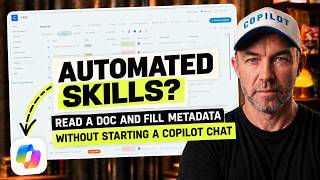 SharePoint Autofill Columns: Let Your Library Fill In Its Own MetadataSave a prompt on a SharePoint column once and every new file gets its metadata filled in from its own content. Setup, testing, column types and the limits.
When do you need content types and document sets?
A content type is a kind of document plus the columns that belong to it. A policy might need an owner, a department and a review date. Meeting minutes need a meeting date and attendees. Put those columns on a content type, add the content type to a library, and every file of that kind asks for the same information. Change the content type in site settings and the change flows to every library using it.
A document set is a special content type that behaves like a folder with its own form. Create a “Project” document set and you fill in the project ID, stage and manager once, at the project level. Turn on shared columns and those values copy down to every file dropped inside. You can also give it default content (template files and starter folders) and a welcome page view, so every new project starts the same way.
- 8
 What Is a SharePoint Document Set and When Should You Use One?A SharePoint document set is a folder-like container with its own metadata, allowed content types, shared columns and a custom view. Learn when to use one.
 - 9
 How to Build a Project Template in SharePoint With Document SetsSet up a SharePoint document set so every new project starts with the same folders, template documents and project metadata, ready the moment it's created.
 - 10
 Does Copilot in SharePoint Read Content Type Hub Metadata? I Tested ItCopilot in SharePoint answered questions from columns published through the Content Type Hub just as it did from library columns. What I tested and its limits.
Are folders ever the right answer?
Yes, for two reasons. You can’t secure content by metadata, so when part of a project needs to be restricted to a few people, a folder is the right tool. And inside a document set, a small, consistent structure (planning, delivery, closure) can help people find their way around. Keep it to two or three levels. If people still want to see everything at once, a view set to Show all items without folders flattens the library and keeps the metadata filters.
How do people work on documents together?
Co-authoring is on by default and suits most documents. Check out is for the few files where only one person should edit at a time. When a document needs sign-off before it’s final, set up approvals on the library instead of chasing people by email. And when someone needs to know a file was added or changed, rules have replaced the old SharePoint alerts.
- 12
 SharePoint Check Out vs Co-Authoring: Which Should You Use?Check out locks a SharePoint file to one editor and asks for a comment on check in. Co-authoring lets everyone edit at once. When each one suits a document.
 - 13
 How to Set Up Document Approvals in a SharePoint LibraryTurn on approvals in a SharePoint library, send documents for sign-off in Teams, and build a two-step approval with a quick step, all without Power Automate.
 - 14
 SharePoint Alerts Are Retired: How to Set Up Rules InsteadSharePoint Alerts stopped working in July 2026. Set up rules to get emailed when a file is added, changed or deleted, or a date is coming up, in a few minutes.
Where do lists and forms fit?
Lists hold records rather than files: contacts, assets, requests, risks. They use the same column types as libraries, and a lookup column can link a library to a list so a document points at the client or project it belongs to. Library forms let people upload a file and fill in its metadata without ever opening the library.
- 15
 How to Create, Query and Format a Microsoft List with Copilot in SharePointCopilot in SharePoint can build a Microsoft List from an Excel file, answer questions about it, update items and format it from chat. Steps and what to check.
 - 16
 Let people upload documents and metadata to SharePoint with library formsSharePoint library forms let people in your organisation upload a file and fill in its metadata without opening the library. Set one up and know its limits.
How do the fundamentals set you up for Copilot?
Copilot reads SharePoint through the same structure people do. It only sees what the user has permission to see, and it answers far better from a library with clear, filled-in columns than from a pile of folders. Every step above is also Copilot preparation, which is why I treat information architecture as step one of any Copilot rollout.
- 17Why Your SharePoint Needs an Information Architecture Before AICopilot is only as good as the SharePoint it reads. What information architecture means for AI, the three foundations to fix first, and where to start.
- 18
 Why Can't Copilot Find My SharePoint Documents? Five Causes and FixesCopilot can't find SharePoint documents when access, search settings, indexing or missing metadata get in the way. Check each cause and fix it in your library.
 - 19
 Turn SharePoint into a Copilot Knowledge Base with MetadataCopilot can reason over your SharePoint metadata, so a library with the right columns answers questions like 'which documents have expired?'. Which columns to add first.
The setup mistakes I’d avoid from day one
These come straight from building the project system in the masterclass, and they’re the ones that cost the most time to undo later.
- Creating the same column in every library. If two libraries need a Document type column, make it a site column once. Library columns can’t be reused, and you end up with “Doc Type”, “Document type” and “Type” meaning the same thing.
- Leaving the default Document content type in place. If a library is for project documents, add your content type and remove the default one, or new files quietly arrive as plain documents with none of your columns. SharePoint won’t let you remove it while files still use it, so change those files’ content type first.
- Naming content types for admins instead of users. The name appears in the New menu, so call a document set “Project” and people see “New project”, rather than “Project document set CT”.
- Putting project details on every file. Project ID, stage and manager belong on the document set, shared down to the files, so they’re entered once.
- Building deep folder trees. Two or three levels inside a project is plenty. Past that, people lose files and permissions get messy.
- Forgetting the views. Columns nobody can filter on are wasted. Save the views people need and link to them from the site’s home page.
If you want the document sets part of this walked through in one go, my free Document Sets Blueprint covers document sets, content types, shared columns and the view trick in 23 minutes. To check a library is ready for Copilot, use the Copilot-ready library checklist.
Frequently asked questions
What’s the difference between a library column and a site column? A library column is added from Add column in one library and only exists there. A site column is created in Site settings under Site columns, can be added to any library or list in that site, and keeps the same name and choices everywhere it’s used. Use site columns for anything you’ll need in more than one place.
Can I set permissions based on metadata in SharePoint? No. SharePoint permissions apply to a site, a library or list, a folder or an individual file. If a group of documents needs different access, put them in their own library or folder, or on a separate site if the audience is completely different.
Do I need extra licences for metadata, content types and document sets? No. They’re standard SharePoint Online features included with Microsoft 365 business and enterprise plans. Document sets need the Document Sets site collection feature switched on in site settings, but there’s no extra cost. Copilot features such as autofill columns are a separate matter.
Should I learn SharePoint before using Copilot? You don’t need to be an expert, but the fundamentals help. Copilot answers from the documents you can access, and it finds and filters them far more reliably when they sit in a well-organised library with clear metadata.