You can share a skill you built in Copilot Studio with specific people or security groups in your organisation, much like sharing a file. They add it to their own agents from a catalogue of shared skills, and in my test the same skill also turned up for them in Copilot Cowork and as a plugin in Copilot in SharePoint.
Deleting a shared skill doesn’t pull it back from everywhere. When I deleted mine, it disappeared from Cowork and Copilot in SharePoint after a short delay, and stayed inside an agent that had already added it. Skill sharing is in preview, so screens and behaviour will change. Know how deletion works before you hand skills around.
Before you start
- The new Copilot Studio agent experience. Skill sharing sits in agents built on what Microsoft calls the GitHub Copilot harness, the experience where you pick the model and add skills, tools and knowledge from the Build tab. Microsoft’s documentation notes that this harness uses usage-based billing, so building, testing and using these agents can consume Copilot Credits.
- A skill in your agent. Upload one as a zip or create one from blank. The skill I shared in the video is my contract redline skill: SKILL.md, a playbook in a references folder and four Python scripts. I cover how it’s built in how to build a contract redline agent in Copilot, and how scripts and reference files work in how Copilot skills run Python scripts.
- Someone to share with. A second account in your tenant is enough to test with. Mine is a user called Frankie.
How do you share a skill from Copilot Studio?
The options are the ones you’d expect from sharing a file. Only you. Specific people. A whole security group.
- Open your agent and go to the Build tab. Under Skills, select the skill to open its configuration panel. The panel lists the skill’s files (SKILL.md, references, scripts) and you can click through each one.
- Select the three dots (…). You get three options: Download, Replace and Share.
- Select Share. Choose Only you to keep it private, or Specific users in your organization and add at least one person or security group by name or email.
- Confirm. In my tenant the button was labelled Publish; Microsoft’s documentation calls it Apply.
Once it’s shared, the skill sits in the marketplace catalogue for the people you chose. The catalogue only shows skills shared with you by admins or skill owners.
How does someone add a skill you’ve shared?
In their own agent, the person you shared with selects the + next to Skills, then Browse skills (preview). The catalogue loads, they select the skill and choose Add. The details page shows who developed it, and once added it appears under Skills like any other.
When Frankie added my contract redline skill, it came across with all six files, and he could open each one from his agent. No zip to pass around.
Where else does a shared skill show up?
A shared skill doesn’t stay in Copilot Studio. With nothing more than the share, the same skill appeared for Frankie in two other places:
- Copilot Cowork. Under Customize, the skill was listed alongside his other skills, with a toggle to turn it on or off. My Copilot Cowork guide covers how Cowork uses skills.
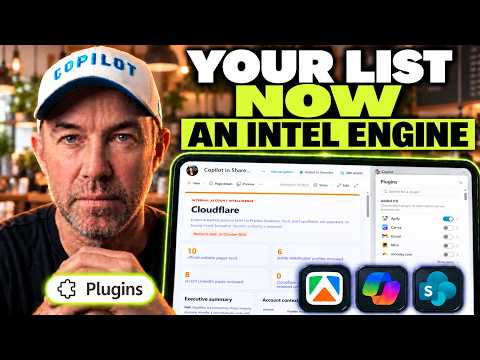
- Copilot in SharePoint. In a document library, the Copilot pane’s Plugins list showed the same skill. I’ve written about plugins in Copilot in SharePoint before.
Microsoft’s documentation describes shared skills as usable “across Copilot Studio agents and other supported experiences”.
What can the person you share with do?
The creator stays in charge of a shared skill. When Frankie opened the three dots on the skill in his agent, Share and Replace were greyed out, with the message “Only the publisher or an editor can replace this skill.” This is how it split in my test:
| Action | Creator | Person you shared with |
|---|---|---|
| Use the skill in an agent | Yes | Yes |
| Open its files and download it | Yes | Yes |
| Share it with someone else | Yes | No |
| Replace it with a new version | Yes | No |
| Remove it from Cowork | Delete | Uninstall |
What happens when you delete a shared skill?
In the preview, there’s no option in Copilot Studio to delete a skill you’ve shared. Removing it from your agent with the X next to the skill only removes it from that agent. To delete the shared skill itself, the creator goes to Cowork, opens Customize and deletes it there. This is what that removed on Frankie’s side:
- Cowork: straight after the delete, the skill was still listed and he could still uninstall it. Shortly after, it had gone.
- Copilot in SharePoint: the next time I opened the Plugins list, the skill wasn’t there.
- His Copilot Studio agent: the skill stayed. After saving and refreshing the agent, it still loaded with no errors, and he could still open its files and download it.
The agent keeps working because of how adding a skill works. Microsoft’s documentation says that when you add a marketplace skill, the agent gets a snapshot of the skill and keeps a reference to the original. Frankie’s agent ran from that snapshot, files and all, after I’d deleted the original.
Do you need to share a skill again after you edit it?
Yes. Microsoft’s note on sharing says that when you edit and change a skill you’ve already shared, you share it again to make the latest version available to the people you previously shared it with. Agents that use an older version of a marketplace skill show an update notification when someone opens them, with a button to update to the new version.
I didn’t test the update notification in the video. Going by the docs, an agent keeps running the version it took until its owner selects update.
Give every shared skill an owner and a version
You can think of a skill like an SOP, a recipe for AI. Once you share it, it becomes part of how other people work, so I’d treat it like any other process the team relies on.
Decide who owns it. Only the creator can replace or delete it, so it’s tied to one person’s account. I haven’t tested what happens to a shared skill when its creator leaves the organisation. Have the person who owns the process create and share the skill.
Where you can, share with a security group. The share dialog accepts groups, and you then manage who has the skill through membership you already look after.
Put a version and a date in the skill’s description. Because agents keep a snapshot, the skill in one agent can be older than the one in another, and the description is the first place someone will look to tell them apart.
Plan the retirement before the launch. Deleting a shared skill won’t remove it from agents that already added it, so keep a list of the agents using each skill and ask their owners to remove it when you retire it.
Frequently asked questions
Can I share a Copilot Studio skill with a security group? Yes. Add the group under Specific users in your organization. You need at least one person or group before you can confirm.
Do people get my changes when I update a shared skill? Not automatically. Share the skill again after you edit it. Microsoft’s documentation says agents using an older version show an update notification when they’re opened, and the agent owner chooses whether to update. Until then it runs the older snapshot.
What’s the difference between removing a skill from an agent and deleting it? The X next to a skill in an agent removes it from that agent only, and Microsoft suggests downloading it first if you might need it again. Deleting the shared skill happens in Copilot Cowork under Customize, and only the creator can do it.
Can the person I share with turn a shared skill off in Cowork? Yes. In Cowork, under Customize, they can toggle the skill on or off, or uninstall it. In my test they could only uninstall it from their own Cowork.
Is skill sharing in Copilot Studio generally available? Not yet. Sharing skills through the marketplace is in preview, and Microsoft’s documentation for it is marked prerelease and subject to change. Microsoft says preview features aren’t meant for production use.