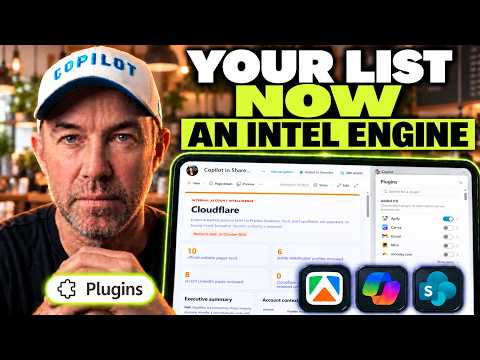
Yes, a Copilot skill can run Python scripts. A skill is a folder: SKILL.md holds the instructions, a scripts folder holds code the skill runs, and a references folder holds detail Copilot reads only when a step needs it. In Copilot Agent Builder you upload that whole folder as a zip, and the scripts run in a sandbox whenever the skill calls them.
Most skills I see are one SKILL.md file, which leaves Copilot to do every count and every check itself. Ask a model to check every file in a library against a rule and you’ll get a decent attempt, then a slightly different one the next time you ask. A script reads the same data and gives the same answer on every run, and for a report someone is going to act on, you want that.
What goes in a Copilot skill folder?
The folder layout follows the open Agent Skills specification, the same format Microsoft documents for Agent Framework and Copilot Studio skills. Only SKILL.md is required.
| Part | Required | What it holds | In my demo skill |
|---|---|---|---|
| SKILL.md | Yes | The method: when to use the skill, the steps, and the calls that need judgement | The library readiness audit instructions |
| scripts/ | No | Code the skill runs for work that has to be exact | Two Python scripts: one audits the library, one renders an HTML report |
| references/ | No | Longer detail read only when a step needs it | A markdown fix guide |
| assets/ | No | Templates and files used in the output | Not used |
For a worked example with a playbook in references and four scripts, see how to build a contract redline agent.
The specification suggests keeping SKILL.md under 500 lines, and the references folder is how you do that. My fix guide carries a lot of detail that would bloat SKILL.md. Copilot reads the skill’s description to decide whether the skill applies, the SKILL.md instructions once it does, and a reference file only when a step needs it. Anthropic calls this progressive disclosure, and it also notes that a bundled script can run without its code being loaded into the model’s context.
How do scripts in a skill run in Agent Builder?
SKILL.md tells Copilot when to run each script and on what. The script runs in a sandbox, reads the input file, and writes its results. Copilot then reads those results and explains them in plain language.
The sandbox sets the rules for what a script can do. These are the limits I checked against Microsoft Learn on 29 October 2026, plus the skill limits from my Agent Builder skills walkthrough:
- No network access and no package installs. A script can’t call SharePoint, an API or a website, and it can’t pip install a library. Write it with Python’s standard library and give it a file to work on.
- File types. Python (.py) and markdown (.md) files are both supported in a skill package.
- Folder depth. The package can go at most three folders deep.
- Size. Each zipped skill package can be up to 50 MB, and an agent can hold up to eight skills.
The chat won’t tell you any of this is happening. In my demo, Copilot gave no sign in the conversation that it was using the skill. Open Coding and executing while it runs and you can see the script’s path and the script executing.
What the library readiness audit skill produced
The skill checks whether a SharePoint document library is ready for Copilot. The library I used for the demo is a deliberate mess: folders inside folders inside folders, some files with metadata and some without.
To get the CSV, I used Export to Excel in the library. It downloads an IQY file; open it, choose to put the data in a new workbook, then use File, Save As and save it as CSV.
The input is the library exported to CSV. I uploaded the file to the agent, asked “Is my library ready for Copilot?”, and had the report 36 seconds later. It came back with four things:
- An on-screen summary with the three biggest issues, the full picture as a table, and a priority fix list.
- An HTML report, rendered by the second script, that opens as a visual version of the audit.
- A flagged files CSV listing the files the audit picked up.
- The raw audit results as a JSON file.
Then I deleted the skill from the agent, added it back from the zip, and ran the same request again. The script ran under Coding and executing, and the summary, fixes and HTML report looked the same as the first run. Same report, both times.
Keep the agent instructions light and put the method in the skill
My agent’s instructions are short and broad. They describe the agent’s overall job, which I think of as the who. The library readiness audit skill is the how: open it in the agent’s settings and you see the SKILL.md instructions at the top, with the scripts and references files listed underneath.
Uploading works the same as any other skill. Edit the agent, choose Add in the skills section, and upload the zip rather than a single SKILL.md file. Agent Builder unpacks the folder and adds the instructions, scripts and references together. Update the agent and the skill is live. I cover the upload steps and how to group skills under one agent in how to add skills to Copilot agents in Agent Builder.
Give the script every step that has to be exact
When I design a skill now, I split the job before I write anything.
- Find the step where you’re hoping Copilot gets the numbers right. Counting files, checking names or metadata against a rule, working out folder depth, laying out a report. Each of those goes in a script. Reading the results, explaining them and deciding what to fix first stays with Copilot, which does that part well.
- Name the script in SKILL.md and say exactly when to run it. An instruction like “Run the audit script in scripts/ on the uploaded CSV before writing anything” leaves nothing to guess.
- Write the script for the sandbox from day one. Standard-library Python only, because nothing can be installed. The csv, json and html modules cover a lot of reporting work. If your script needs live data, change the skill so a person supplies the file, the way my audit works from an export.
- Know what the export can see. The CSV holds the items and columns in the view you exported, and the export only includes items the person exporting has permission to see, as with any SharePoint view. If the view hides your metadata columns, the audit can’t check them. Export from a view with every column you care about, and run the export as someone who can see the whole library.
- Treat the report as a snapshot and rerun it. The audit reflects the library on the day of the export. Fix the top items on the priority list, export again, and compare the flagged files CSV with the last one.
- Watch the first few runs under Coding and executing. Because the chat doesn’t announce the skill, that view is the only place you’ll see whether the script ran or Copilot wrote the answer itself.
The mess in my demo library, missing metadata and folders inside folders, gets fixed with information architecture work. For why those problems hold Copilot back, read why Copilot can’t find your SharePoint documents and SharePoint folders vs metadata.
I go through writing a skill with Copilot Chat and running it in Copilot in SharePoint, Cowork and Agent Builder in my free Copilot Skills Masterclass, about 30 minutes end to end.
Frequently asked questions
Can a Copilot skill install Python packages like pandas? No. Scripts in an Agent Builder skill run in a sandbox with no network access and no package installs, so anything outside Python’s standard library won’t load. The standard library’s csv, json and html modules are enough to read an export, check it against rules and write an HTML report.
What files can a Copilot skill package contain? A skill package needs a SKILL.md file and can include folders such as scripts, references and assets. Python (.py) and markdown (.md) files are both supported, the folder structure can go at most three levels deep, and the zipped package can be up to 50 MB.
Does a skill’s script fill up the model’s context? Not according to Anthropic’s description of the Agent Skills format. A bundled script can run without its code or its input file being loaded into the model’s context, so the model works from the script’s output. Microsoft doesn’t document context use for Agent Builder skills specifically.
How do I export a SharePoint document library to CSV? Use Export to Excel in the library, which downloads an IQY file. Open it, put the data in a new workbook, then save the workbook as a CSV file. Excel’s Save As offers CSV UTF-8, which keeps non-English characters in file names intact. The export includes the columns in the current view, so switch to a view with the columns you need first.
Can skills in Copilot in SharePoint run scripts too? Not in the same way. Copilot in SharePoint won’t run code you put in a site skill, as Zach Rosenfield explains in the real purpose of Copilot in SharePoint. For a skill that runs Python, use an agent in Agent Builder.